
Why streaming quality drops even on a fast connection
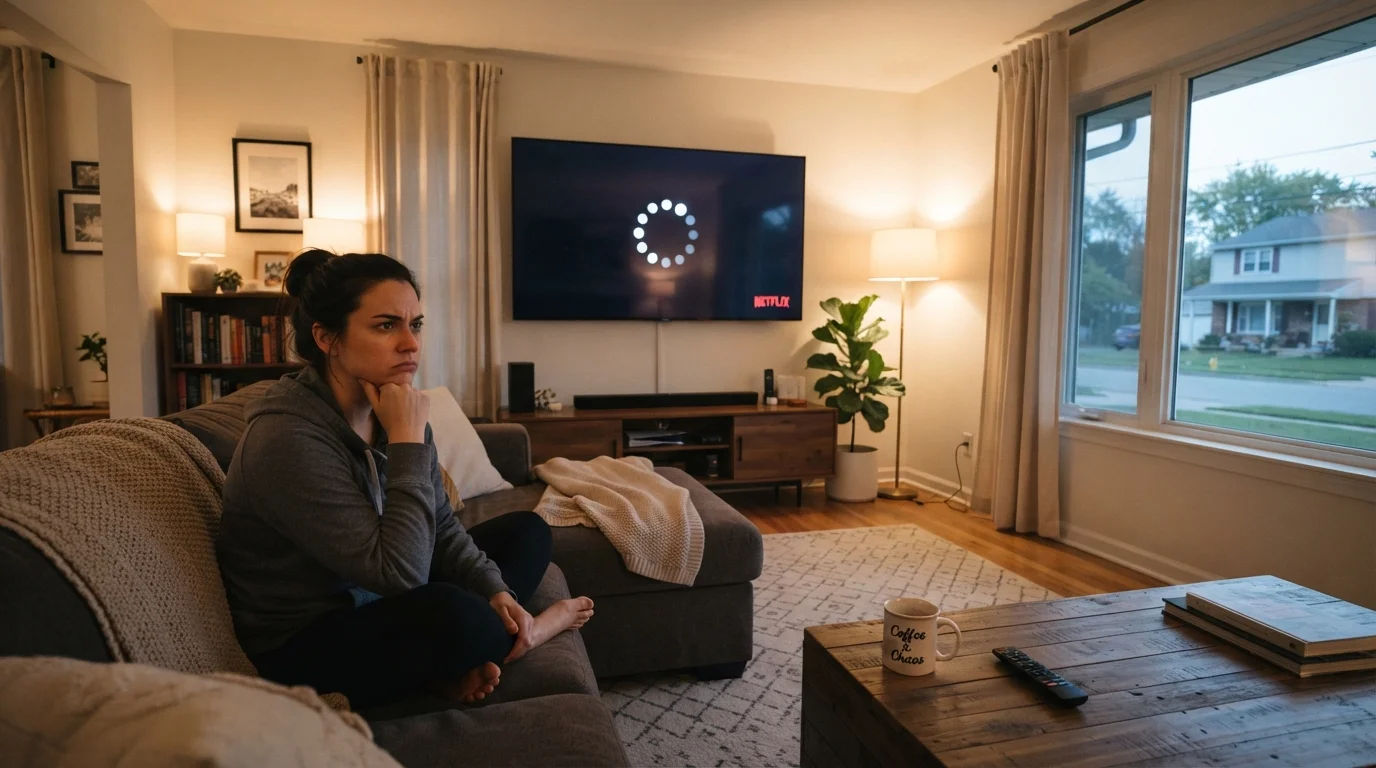
A high-speed internet plan does not guarantee smooth streaming. The path a video signal travels from the internet into your television involves several steps, and any one of them can create a bottleneck. Your modem converts the signal from your internet provider, your router distributes it across your home, and your streaming device receives it over either Wi-Fi or a wired cable. A problem at any point along that chain shows up on screen as buffering, lower resolution, or sudden pauses.
Two separate problems are often confused: slow internet from your provider, and slow delivery within your home. A speed test at fast.com or speedtest.net run directly on the device you stream from will tell you which situation you are in. If the measured speed is well below what your plan promises, the issue may be with your provider. If the speed looks fine but streaming still stutters, the problem is almost certainly inside your home setup.
Run the speed test on the right device
For accurate results, run your speed test directly on the device you use for streaming, not on a separate laptop or phone. Speed can vary considerably between devices depending on their Wi-Fi chip and distance from the router. The number that matters is the one your streaming device actually receives.
Common causes and how to address them
Work through the steps below in order. Many households fix the problem before reaching the end of the list.
Reboot your modem and router
Unplug both your modem and your router from power. Wait 30 seconds, then plug the modem back in first. Once its indicator lights stabilize (usually 60 to 90 seconds), plug the router back in. This clears memory, drops stale connections, and often restores normal speeds without any other change.
Check where your router is placed
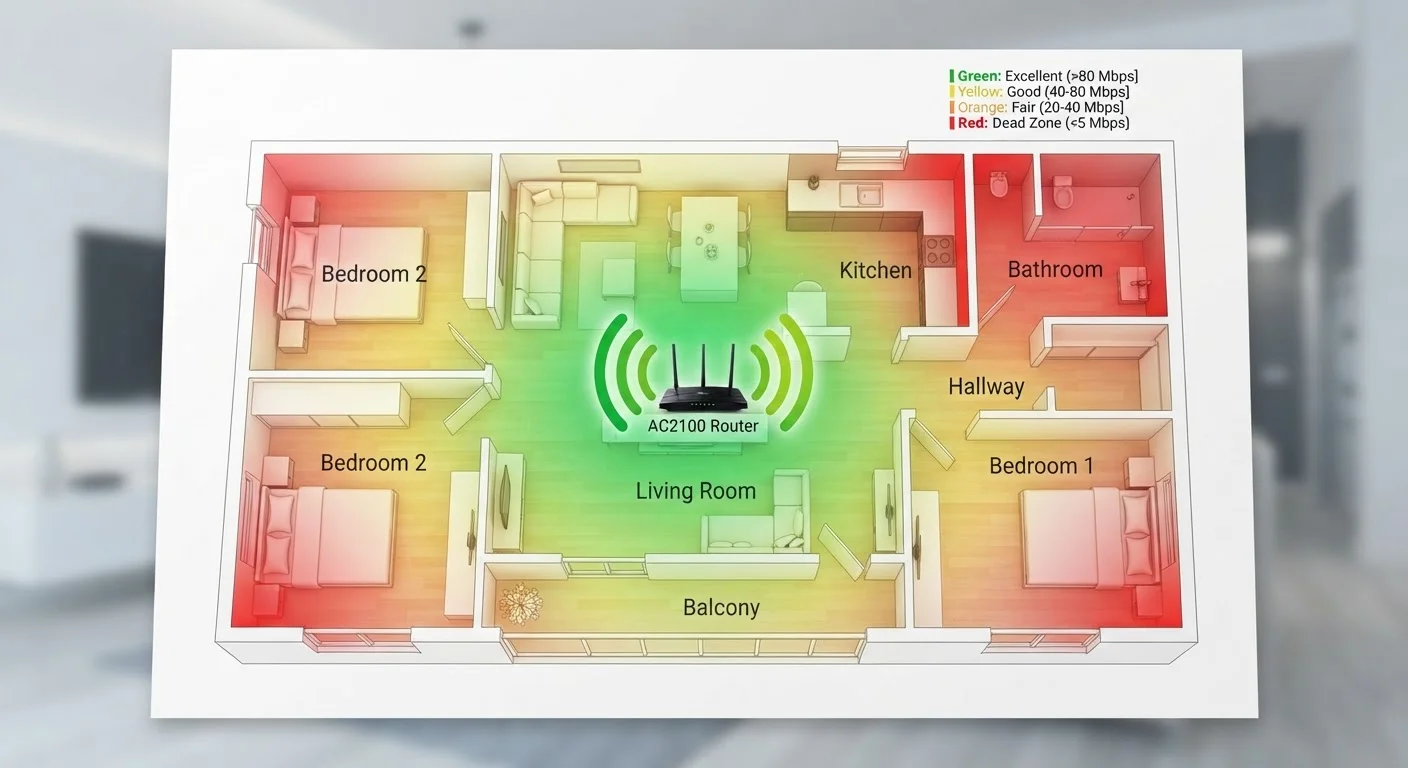
Your router broadcasts a wireless signal in all directions, so placement matters significantly. A router tucked inside a cabinet, placed on the floor, or located in one corner of the house will deliver a weaker signal to devices far away or on a different floor. Move the router to a central, elevated, open location. Thick walls, concrete floors, and appliances like microwaves physically block or interfere with the signal.
Reduce the number of active devices on your network
Each device connected to your Wi-Fi uses some portion of your available bandwidth, even when it is just sitting idle and checking for updates. During a streaming session, temporarily disconnect devices you are not using, or pause any downloads in progress. This frees up capacity for the stream. If the quality improves immediately, congestion was the cause.
Switch your streaming device to the 5 GHz Wi-Fi band
Most modern routers broadcast two bands: 2.4 GHz and 5 GHz. The 2.4 GHz band carries signal farther but is slower and shared by many household devices including microwaves and baby monitors. The 5 GHz band is faster and less congested, though its range is shorter. In your device's Wi-Fi settings, look for a network name that includes '5G' or '5GHz' and connect to that one if your device is within a reasonable distance of the router.
Connect your streaming device with an Ethernet cable
A wired connection bypasses all Wi-Fi variability. If your TV, streaming stick, or game console has an Ethernet port, run a cable directly from the router to that device. The connection is stable and does not degrade with distance or obstacles the way Wi-Fi does. Many streaming sticks and dongles require an adapter to accept an Ethernet cable; these are widely available and inexpensive.
Update your router's firmware
Router manufacturers release firmware updates that fix performance issues and security vulnerabilities. Log into your router's admin panel (the address is usually printed on a label on the router itself, often 192.168.1.1 or 192.168.0.1) and look for a firmware or software update option. Apply any available update and allow the router to reboot.
When the problem keeps coming back
If streaming quality drops consistently at the same time each evening, the cause is likely network congestion: many devices in your home competing for bandwidth during peak hours. Streaming video, video calls, online gaming, and large file downloads all consume bandwidth simultaneously. Staggering those activities, or upgrading to a plan with higher speed, can reduce the conflict.
Older routers also struggle to serve several devices at once. A router that handles 5 or 10 devices competently may become sluggish when your household reaches 15 or 20 connected devices, which is common in homes with smart TVs, phones, tablets, smart speakers, and security cameras all running at once. If your router is more than five years old and you have added many devices since you bought it, the hardware itself may be the limiting factor rather than your internet plan.
Mesh Wi-Fi systems, which use multiple access points placed around a home, can replace a single router that no longer covers your space adequately. These are not a cure for a slow internet plan, but they do distribute a sufficient signal more evenly across larger homes or multi-story layouts.