
What a budget app actually does
A personal budget app is software that collects your financial transactions in one place and organizes them into categories so you can see patterns in your spending. Without an app, that process means logging into multiple bank and credit card websites, copying numbers into a spreadsheet, and doing the math yourself. An app automates the collection step and presents the results visually.
The core function is aggregation: pulling transactions from checking accounts, savings accounts, credit cards, and sometimes loans into a single dashboard. From there, the app assigns each transaction to a category, such as groceries, rent, or transportation, and shows you totals by category over any time period you choose.
Budget apps do not manage your money directly. They report on what has already happened and, in some cases, let you set spending targets so you get an alert when you approach a limit. For a broader view of how tracking past spending informs future planning, see why reviewing past spending matters.
Account aggregation
The process of pulling transaction data from multiple financial accounts into a single app so you can see all your activity in one place.
Read-only access
A type of connection that lets an app view your account data but not make changes, move money, or initiate payments.
Spending category
A label assigned to a transaction, such as 'groceries' or 'utilities,' that groups similar purchases so you can see totals for each type of spending.
Access token
A temporary digital key a data service gives to an app after you log in, allowing the app to retrieve your data without storing your actual password.
Spending limit (budget target)
A dollar amount you set per category that triggers an alert when your spending approaches or exceeds it during a given period.
Linking your accounts safely
Account linking is the step that makes automatic tracking possible. Most apps use a third-party financial data service to request a read-only connection to your bank. Read-only means the service can retrieve transaction records but cannot move funds or make changes to your account.
During setup, you will typically enter your bank username and password into a secure screen provided by the data service, not the app itself. The app receives a limited access token rather than your actual credentials. Once connected, new transactions appear in the app within one to two business days, depending on how often your bank sends data.
Before linking, check the app's privacy policy for two things: whether it sells your data to third parties, and whether you can revoke access at any time. Reputable apps allow you to disconnect an account from within the app settings, which immediately ends data sharing.
Revoke access in seconds if needed
If you ever want to disconnect your bank from a budget app, you can usually do it in two places: the app's account settings and your bank's own security or connected apps section. Revoking from both ensures the data connection is fully closed. You do not need to change your banking password to end the connection.
Setting up your spending categories
Every app comes with a default set of categories, and those defaults rarely match how real people spend money. Renaming, merging, and adding categories early saves time and produces more accurate reports later.
A practical starting point is to list your five or six largest recurring expenses, such as rent or mortgage, groceries, transportation, utilities, and dining out, and confirm the app has a matching category for each. Transactions the app cannot confidently categorize land in a catch-all like 'Uncategorized' or 'Other.' Plan to spend a few minutes each week during the first month reviewing and correcting these.
If you have a partner or share expenses with someone, decide in advance whose accounts you will include. Mixing separate finances into one budget can distort the numbers unless the app supports separate tracking within a shared view.
See our budgeting basics hub for practical strategies that work alongside any app you choose.
Reading your spending breakdown
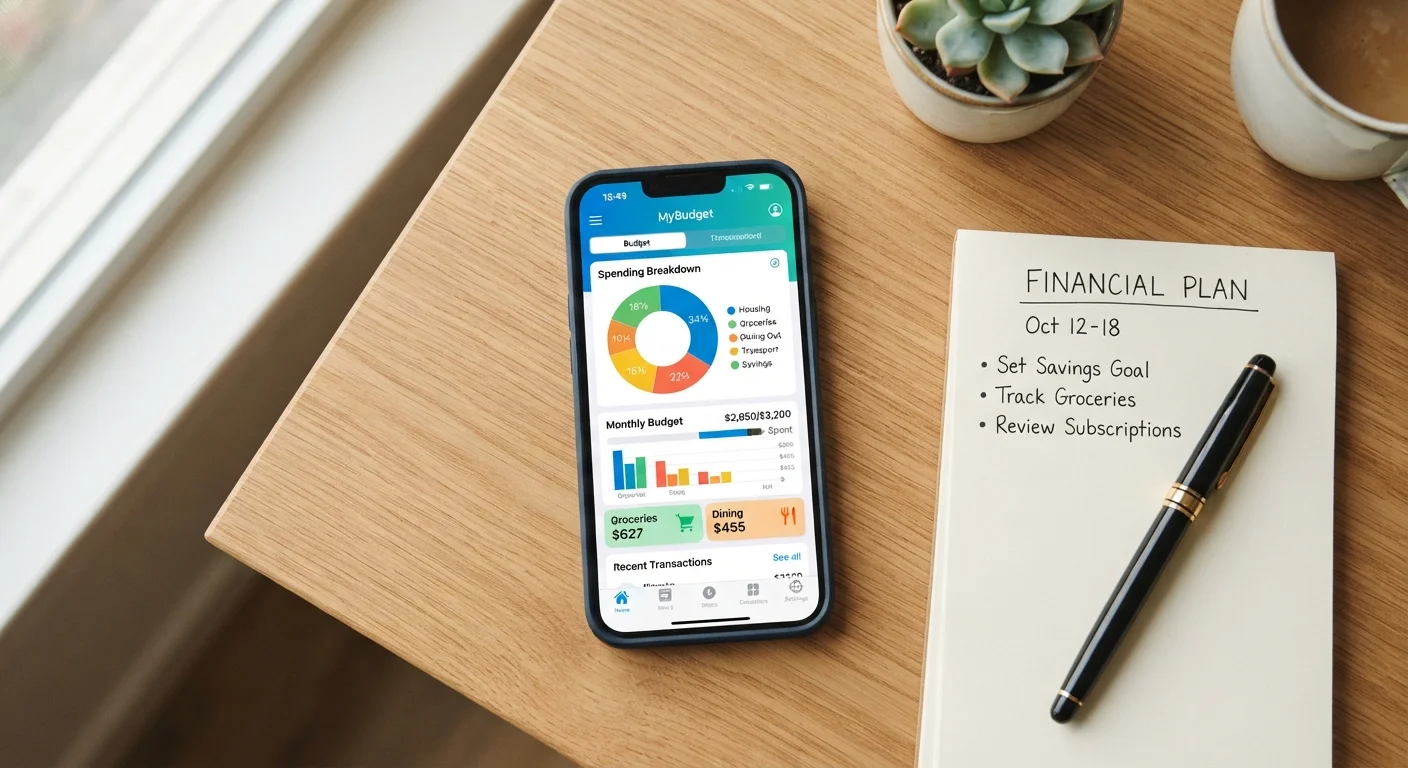
Once your accounts are linked and categories are set, the main dashboard shows a breakdown of where your money went, usually as a bar chart by category or a pie chart showing proportions of total spending. Both views are useful at different times: bar charts show month-over-month change, while pie charts show relative size at a glance.
Look for three numbers when reviewing your breakdown: total income for the period, total spending for the period, and the difference. If spending exceeds income, the app will typically flag this. If there is a surplus, you have a concrete number to work with when deciding how much to save or put toward debt.
Many apps include a trends view that graphs the same category across several months. This is useful because single-month snapshots can be misleading. A month with a car repair or a medical bill will look very different from a typical month, and the trend view puts that spike in context.
Once you understand your baseline, you are well-positioned to move into longer-term planning. Our article on building a long-term financial plan covers the next steps for setting goals beyond the monthly budget.
Common setup mistakes to avoid
The most common mistake is setting spending limits before looking at actual past data. If you guess that you spend $300 a month on groceries but the app shows $480, a $300 limit will trigger constant alerts that feel inaccurate rather than motivating. Pull at least two months of transaction history before entering any targets.
A second mistake is connecting only one account. If your spending is split across a checking account and two credit cards, the app only shows a partial picture until all accounts are linked. Missing a credit card means an entire category of spending is invisible.
Third, avoid checking the app too infrequently. A weekly review of about five minutes is enough for most people to catch miscategorized transactions and stay aware of where spending is trending. Letting the app run for a month without review often means correcting a large backlog at once, which is discouraging.
For readers who want to take automation further, automating savings and debt payments explains how scheduled transfers can work alongside a budget app to reduce the manual decisions involved each month.
This article is for general informational and educational purposes only and does not constitute personalized financial advice. Consult a qualified financial professional for guidance specific to your situation.