
Why changelogs are worth reading
App stores update apps automatically by default on most devices, which means software on your phone can change without you noticing. Changelogs are the brief notes developers publish to describe what changed in each version. Reading them takes less than two minutes, and the information they contain can tell you whether an update is routine maintenance or something that deserves your attention.
Changelogs also help when something stops working after an update. Knowing what changed in the latest version gives you a concrete starting point for figuring out what went wrong. For similar reading practice with device hardware, reading a device spec sheet follows the same plain-language approach.
Where to find more detail than the app store shows
Most developers maintain a public changelog on their website or on a code-hosting platform. Searching the app name plus 'release notes' or 'changelog' usually surfaces a far more detailed version history than the app store listing provides. GitHub, in particular, hosts full changelogs for many open-source apps.
What you need before you start
What you will need
App store listing (App Store or Google Play)
The first place to find an app's update notes, version number, and recent change history.
Developer website or release notes page
Often contains a more detailed changelog than the app store summary, including technical specifics.
CVE database (cve.mitre.org)
A public registry of known software vulnerabilities, useful for verifying whether a security patch addresses a real threat.
How to read a changelog step by step
Find the changelog for the app you want to review
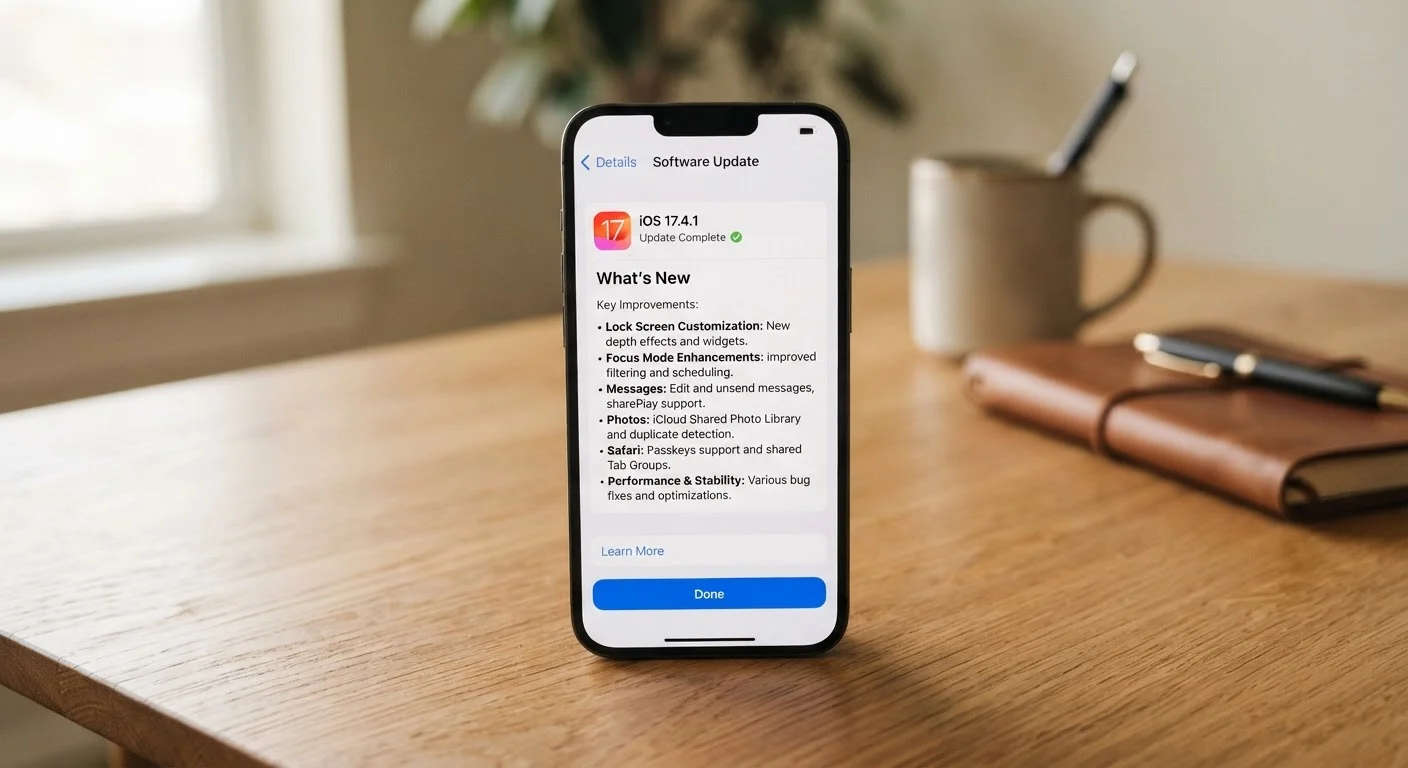
Open your device's app store and navigate to the app's listing page. On iOS, scroll down to the 'What's New' section. On Android, tap 'About this app' and look for the 'What's new' area. Both show the notes for the most recent update, along with a version number.
If the notes are truncated, tap 'More' to expand them. Some apps show only the current version; for older entries, check the developer's website.
Read the version number and understand what it signals
Most apps use a numbering format called semantic versioning, written as three numbers separated by periods, for example 4.2.1. The first number is the major version, the second is the minor version, and the third is the patch version.
- A change to the first number (4.0.0 to 5.0.0) usually means significant new features or a redesign, sometimes with features removed.
- A change to the second number (4.2.0 to 4.3.0) typically means new functionality added without breaking existing behavior.
- A change to the third number only (4.2.0 to 4.2.1) usually means a small fix or a security patch.
Not every developer follows this convention precisely, but it is a useful starting point for gauging how much has changed.
Scan for security-related language
Before reading anything else, look for words like 'security', 'vulnerability', 'patch', 'CVE' (which stands for Common Vulnerabilities and Exposures, a public tracking system for software flaws), 'exploit', or 'authentication'. These signal that the update closes a known security gap.
If you see a CVE number such as CVE-2024-XXXXX, you can look it up at cve.mitre.org to read a plain-language description of the flaw and how serious it is.
Decode common vague phrases
Certain phrases appear in nearly every changelog and carry specific meanings once you know what to look for:
- 'Bug fixes and improvements' means something was broken and has been corrected, but the developer has chosen not to say what. It may be minor, or it may address a significant crash or data error.
- 'Performance improvements' means the app should run faster or use less battery, though this is sometimes difficult to verify.
- 'Updated privacy policy' or 'updated terms of service' means something in the legal agreement has changed, which may affect how your data is handled.
- 'Stability improvements' usually refers to crash fixes.
When a change affects how the app handles your data or permissions, checking the full terms is worth the time. See also: how privacy controls work on major platforms.
Check for removed features or behavior changes
Look for language like 'removed', 'deprecated', 'discontinued', or 'no longer supports'. These words indicate that something you may currently use will stop working. An update that removes a feature you depend on is worth knowing about before you install it.
If you rely on an app for work tasks or daily routines, this step is particularly useful. For a broader perspective on deciding when to install updates versus waiting, see when to update your phone's software.
Decide whether to update now or wait
Once you have read the changelog, you have enough information to make a call. A security patch warrants immediate installation. A major version update with significant interface changes may be worth waiting on if you are in the middle of a project and cannot afford disruption.
For apps that sync data across devices, it is also worth checking whether the update changes sync behavior before proceeding. Problems that arise from version mismatches are a common source of data headaches; sync errors and disappearing data explains why those issues happen.
Security fixes require prompt action
When a changelog mentions a security patch or vulnerability fix, that update addresses a known weakness attackers may already be targeting. Delaying a security update leaves your device and data exposed. Install these updates as soon as you reasonably can, even if you normally prefer to wait and see.
When vague notes should prompt extra scrutiny
Not all vague changelogs are deceptive. Small development teams often write brief notes because they lack the bandwidth to write detailed release documentation for every fix. However, some situations call for a closer look before you tap 'Update'.
If an app recently changed ownership, merged with another service, or updated its pricing model, a generic 'bug fixes' entry in the same release is worth treating with more caution. The same applies if you notice that the app is requesting new permissions after updating, which your device will typically flag during or after installation.
Generic notes are not always harmless
Some developers use vague language to avoid drawing attention to breaking changes, removed features, or new data-collection practices. If an update follows a company acquisition or a shift in pricing model, read the full terms of service before updating, not just the changelog summary.
Being thoughtful about app updates connects to broader privacy habits. Understanding what data apps can access is part of staying in control of your digital life, and social media privacy settings is a good place to extend that understanding.