
Why app data doesn't always follow you
A new phone feels like a clean slate, but that is exactly the problem for your data. Phone backups protect photos, contacts, and system settings reliably. App data is a different matter.
Most apps fall into one of two categories. The first stores everything on a remote server tied to your account. When you sign in on a new device, the data is simply downloaded again. The second stores data locally on the device, sometimes with no cloud copy at all. When you wipe or replace that device, locally stored data can disappear without warning.
Even apps that do sync can behave inconsistently. A third-party app may not restore fully from an iCloud or Google backup if it was not designed to integrate with the platform backup system. This is why checking individual apps before you switch, rather than assuming a full restore will handle everything, matters.
What you will need
If you are also preparing a phone for travel around the same time, the device prep checklist before travel covers overlapping steps like backup and account access that are worth combining into a single session.
Step-by-step: moving your apps and their data
Back up your current phone
Before touching your new device, create a fresh backup of your old phone. On an iPhone, go to Settings > [your name] > iCloud > iCloud Backup and tap Back Up Now. On Android, go to Settings > System > Backup and turn on Google backup, then tap Back up now. Wait for the backup to finish completely before moving on.
For a fuller picture of what gets saved and what does not, see The Basics of Backing Up Your Phone.
Check which apps sync data to the cloud
Open each app you care about and look in its settings for a sync, backup, or account option. Apps tied to a Google or Apple account (Gmail, Google Photos, Apple Notes, Spotify, etc.) store data on their servers and will restore automatically when you sign in on the new phone. Apps without an account or offline-only apps store data only on the device itself.
Make a short list of any apps that show no sync option. Those need special handling in later steps.
Export data from apps that don't sync automatically
For apps without automatic sync, look for a manual export option inside the app itself. WhatsApp, for example, has a built-in chat transfer feature under Settings > Chats > Transfer Account. Password managers typically offer an encrypted export file. Note-taking apps often let you export as PDF or plain text.
Save any export files to a cloud storage service (Google Drive, iCloud Drive, or Dropbox) rather than just to your old phone's local storage.
Use your platform's device transfer tool
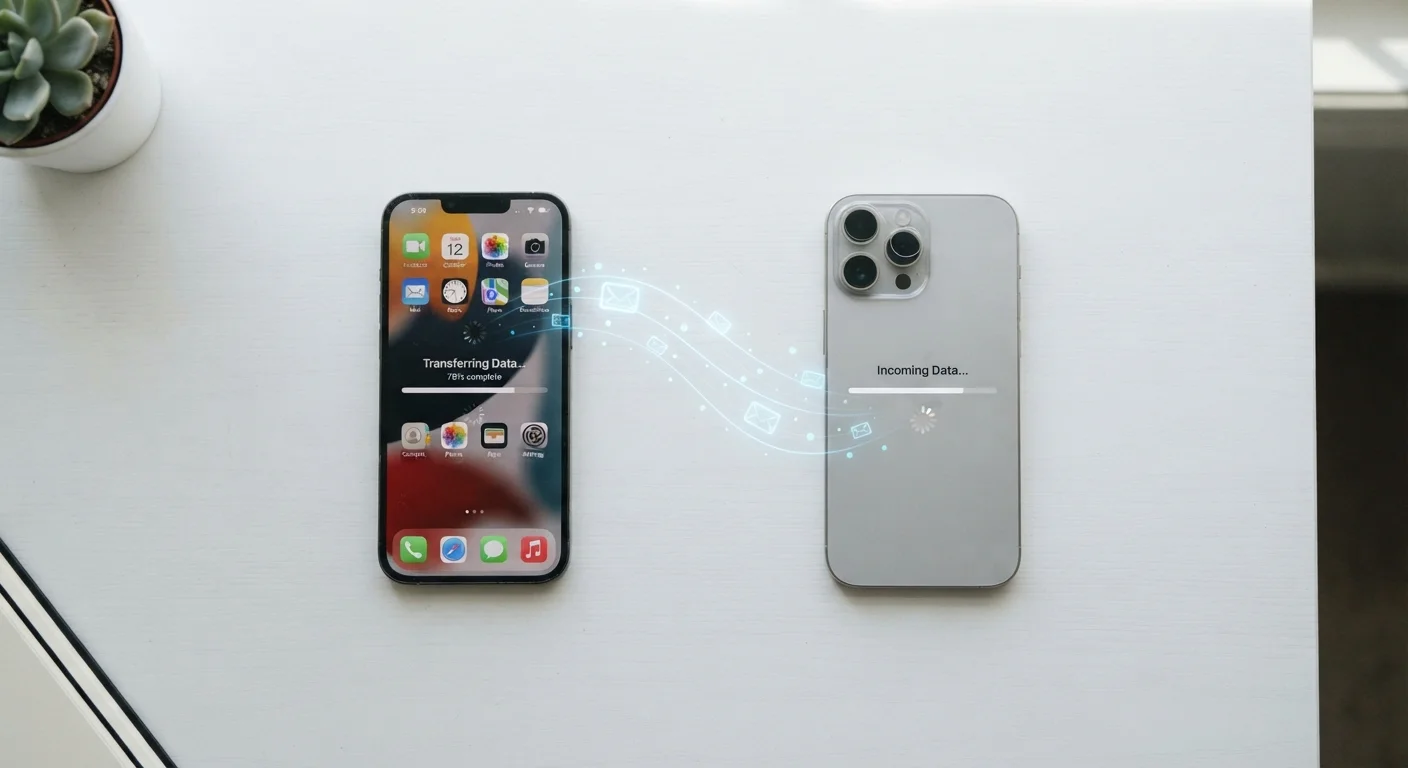
Both iOS and Android include a direct phone-to-phone transfer option that goes beyond a standard backup restore. On iPhone, the Quick Start screen appears automatically when you bring the two phones close together during new device setup. On Android, the Copy your data screen appears during initial setup and lets you transfer directly over Wi-Fi or with a USB cable.
These tools copy installed apps, account credentials, and some app data that a cloud backup alone would miss.
Sign back into each app and verify your data
Once the new phone is set up, open each app from your list and sign in with the same account you used before. Cloud-synced apps should repopulate within a few minutes. For any app you exported manually in Step 3, follow that app's import process to load your data back in.
Check a few specific items inside each app rather than just confirming the app opens. Verify saved playlists, note content, completed tasks, or whatever data matters to you.
Handle apps with no transfer path
Some locally stored data simply cannot be moved: certain offline games, apps that have been removed from the app store, or apps that store data in a format not accessible outside the app. For these, your options are limited to contacting the app's support team to ask about account-based recovery, or accepting the loss and starting fresh.
If you run into broader issues with data not appearing as expected after the move, sync errors and disappearing data are often the cause, and that guide covers the most common reasons.
Once you have verified your apps are working correctly on the new phone, consider reviewing before you delete an app before wiping the old device. Deleting apps without exporting first can remove data that is not stored anywhere else.
What to do about app clutter during the switch
A phone migration is a practical moment to reconsider which apps actually need to come with you. Restoring every app from your backup by default can mean carrying forward tools you stopped using months ago.
Rather than reinstalling everything, go through your old phone's app list and reinstall only what you have actively used. For task management and productivity tools specifically, choosing one productivity system that sticks walks through how to consolidate overlapping apps into something more manageable.
Starting with a cleaner app set on the new device also reduces the number of apps you need to verify data for, which makes the whole migration process faster.