
Why backups matter
Most people think about phone backups only after something goes wrong. A cracked screen, a stolen bag, a phone that falls in water and never turns on again. At that point, the question shifts from "how do I back up?" to "is there anything I can still save?" Preparing ahead of time is the only way to answer that question with confidence.
A backup is a copy of your phone's data stored somewhere separate from the device itself. If your phone is gone or broken, you can restore that copy to a new device and pick up close to where you left off. Without one, years of photos, all your saved contacts, and the history inside your apps can disappear with no way to get them back.
If you keep a family health schedule or important documents on your phone, losing that data causes real disruption. Think of a backup the way you might think about a preventive care calendar: a small, regular habit that prevents a much larger problem later.
What actually gets backed up
A phone backup does not save everything, and the gaps can surprise people. Understanding what is and is not included helps you avoid a false sense of security.
Backup
A copy of your phone's data saved to a separate location, such as a cloud server or computer, so it can be restored if the original device is lost or damaged.
Cloud storage
Digital storage space on a remote server run by a company like Apple or Google, accessible over the internet from any device you sign into.
Restore
The process of loading a saved backup onto a phone, bringing back your contacts, photos, settings, and other data that were stored at the time of the backup.
Incremental backup
A backup that only copies data that has changed since the last backup, making the process faster than copying everything from scratch each time.
App data
Information stored inside an app, such as your game progress, saved preferences, or account settings, which may or may not be included in a standard device backup.
Most standard backups cover contacts, calendar events, call history, device settings, and some app data. Photos and videos are often backed up separately through a photo sync service like iCloud Photos or Google Photos. If you have photo sync turned off, your pictures may not be in your backup at all even if the backup itself is running.
Apps themselves are generally not saved in full. What gets saved is your app list, your login information linked to your accounts, and in many cases your in-app progress. When you restore a backup to a new phone, apps typically reinstall automatically, but some data inside certain apps may not carry over.
Text messages are included in iCloud and Google One backups, but messages in third-party apps like WhatsApp require you to enable backup separately inside that app.
Where your backup goes
You have two main options: cloud storage or a local backup on a computer. Each works differently, and many people use both.
Cloud backup sends your data over Wi-Fi to a server managed by Apple or Google. It happens automatically in the background, usually overnight when your phone is charging and connected to Wi-Fi. The advantage is that it requires almost no effort once set up. The limitation is storage space. Apple gives 5 GB free per account, and Google gives 15 GB shared across all Google services. If you take a lot of photos or videos, you may need a paid storage plan.
Local backup copies your data directly to a computer. For iPhones, this is done through Finder on a Mac or iTunes on a Windows PC. Android phones can transfer files by USB. A local backup does not rely on an internet connection and does not count against cloud storage limits. The drawback is that it only updates when you physically connect your phone, so it can fall behind if you forget.
Before you travel, making a fresh backup of either type is worth doing. See the device prep checklist for a broader look at what to sort out before leaving home.
How to turn on automatic backups
Automatic backup is the most reliable approach for most people because it works without requiring you to remember anything.
On an iPhone
- Open the Settings app.
- Tap your name at the top, then tap iCloud.
- Tap iCloud Backup.
- Toggle iCloud Backup on.
- Tap Back Up Now to start an immediate backup.
After this, your phone backs up automatically when it is charging, locked, and connected to Wi-Fi.
On an Android phone
Steps vary slightly by manufacturer, but the general path is:
- Open the Settings app.
- Search for "Backup" or go to System, then Backup.
- Turn on Back up to Google Drive.
- Tap Back Up Now to run an immediate backup.
Some Android phones also have a manufacturer backup option separate from Google. You can use both if you prefer.
Checking that your backup actually worked
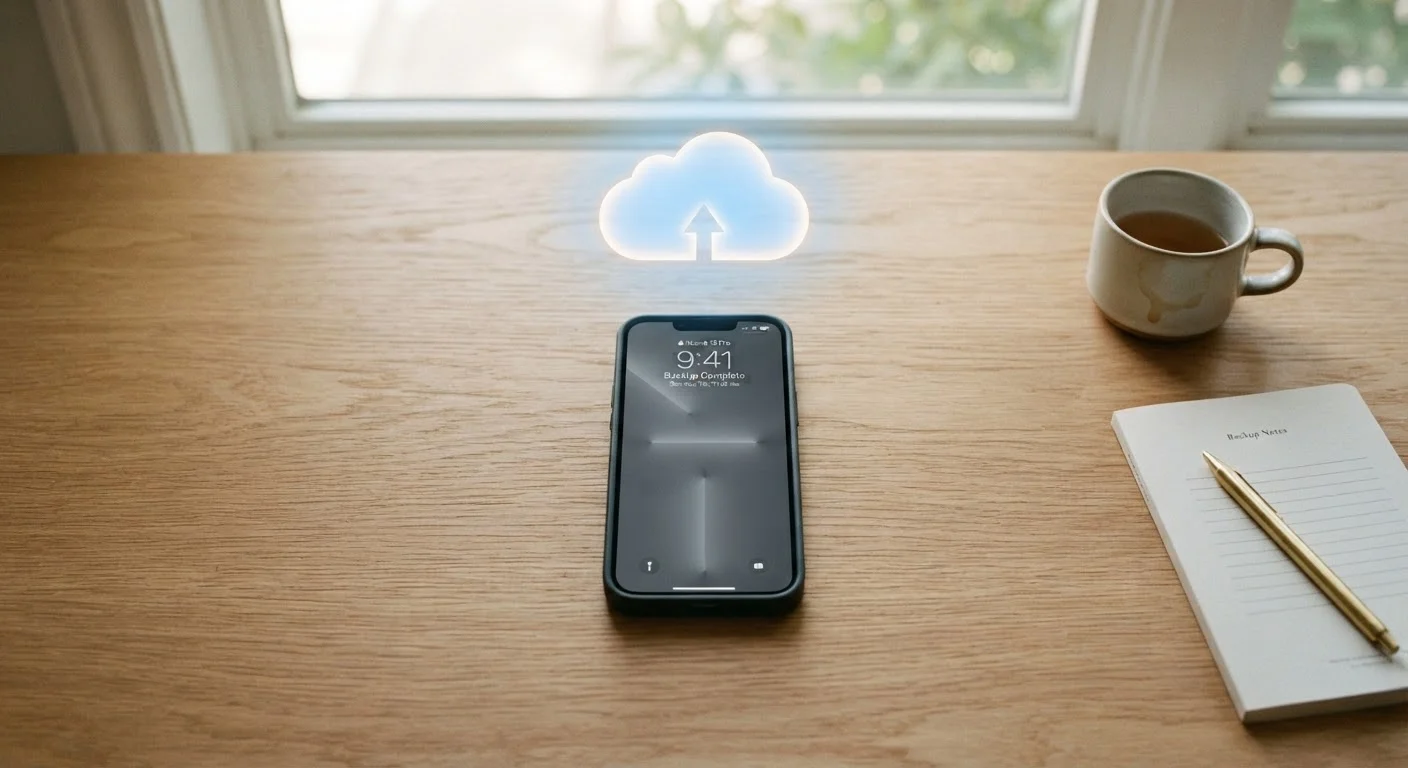
Turning backup on is not the same as confirming it ran. Storage limits, Wi-Fi interruptions, or an old iOS version can quietly stop backups without notifying you.
Make it a monthly habit
Set a recurring reminder on the first of each month to check your last backup date. If you use a password manager or photo app, verify those have their own sync turned on too. A minute of checking now prevents hours of frustration later.
On an iPhone, go to Settings, tap your name, then iCloud, then iCloud Backup. You will see the date and time of the last successful backup. If that date is more than a few days old and you use your phone regularly, something may be preventing backups from completing.
On Android, go to Settings, then Backup. The screen shows when the last backup occurred and which data types were saved.
Check this once a month. It takes under a minute, and it tells you immediately whether your data is protected. If you notice your phone's battery is draining faster than expected or charging behavior seems off, those device health issues are worth investigating separately. For a closer look at how your phone manages power, the article on smartphone battery myths and facts explains how lithium-ion batteries actually work.