
What a smart TV actually is
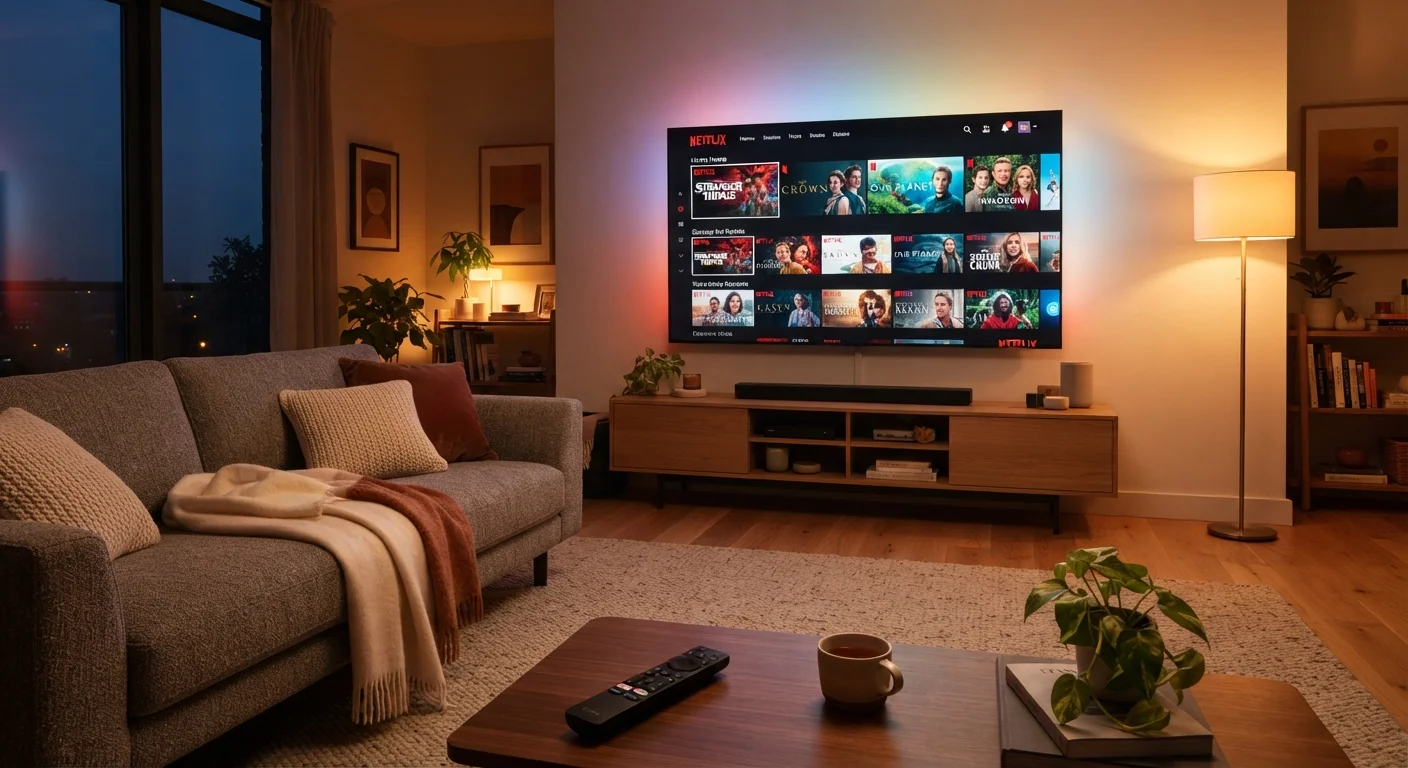
A smart TV is a television with a built-in computer. That computer connects to the internet and runs software, which means you can watch Netflix, browse YouTube, or check the weather without plugging anything extra into the TV. The screen and picture quality work exactly the same way as any other television; the "smart" part is what happens in the electronics behind the display.
Every smart TV runs on an operating system. Common ones include Roku TV, Google TV, Tizen (used on some Samsung models), and webOS (used on some LG models). The operating system controls the home screen you see when you turn the TV on, determines which apps are available, and affects how fast the TV responds to your remote. Think of it the way you think of iOS on an iPhone or Android on a phone: the hardware and the software are separate things that work together.
If you want to understand what the numbers on a TV's spec sheet mean, the plain-language spec sheet guide covers terms like resolution and processor in plain English. For a deeper look at resolution specifically, the screen resolution explainer breaks down what HD, Full HD, and 4K mean for what you actually see.
Operating system
The core software that runs a device and controls what it can do. On a smart TV, the operating system manages the home screen, app store, and settings.
App store
A built-in section of the TV where you can browse, download, and update apps. What is available depends on the TV's operating system.
Streaming
Watching video or listening to audio delivered over the internet in real time, without downloading a file first.
HDMI
A standard cable port used to connect video devices, such as a streaming stick or game console, to a TV.
ACR (Automatic Content Recognition)
A feature that identifies what you are watching and shares that data, usually for advertising. It can typically be turned off in privacy settings.
Buffering
The pause that happens when a video stream cannot load fast enough, causing it to stop and wait for more data to arrive.
How the app ecosystem works
Apps on a smart TV work similarly to apps on a phone: you download them from the TV's built-in app store, sign into your accounts, and use the remote to navigate. The apps available depend on your TV's operating system. Most major streaming services are available on all major platforms, but smaller or newer apps sometimes appear on one platform before others.
App stores on smart TVs are also where updates come from. When a streaming service changes its interface or adds features, your TV downloads an update automatically if the TV is connected to the internet. If the TV's operating system becomes too old, app developers may stop releasing updates for it, which is the main reason older smart TVs can feel stale after several years.
If your TV's app store does not have something you need, or if the TV is simply too old to support newer software, an external streaming stick or box solves the problem. These devices plug into the TV's HDMI port and run their own operating system independently. For a broader look at app ecosystems across everyday devices, the Apps and Software hub has practical overviews of popular apps for daily digital life.
Connecting your smart TV to the internet
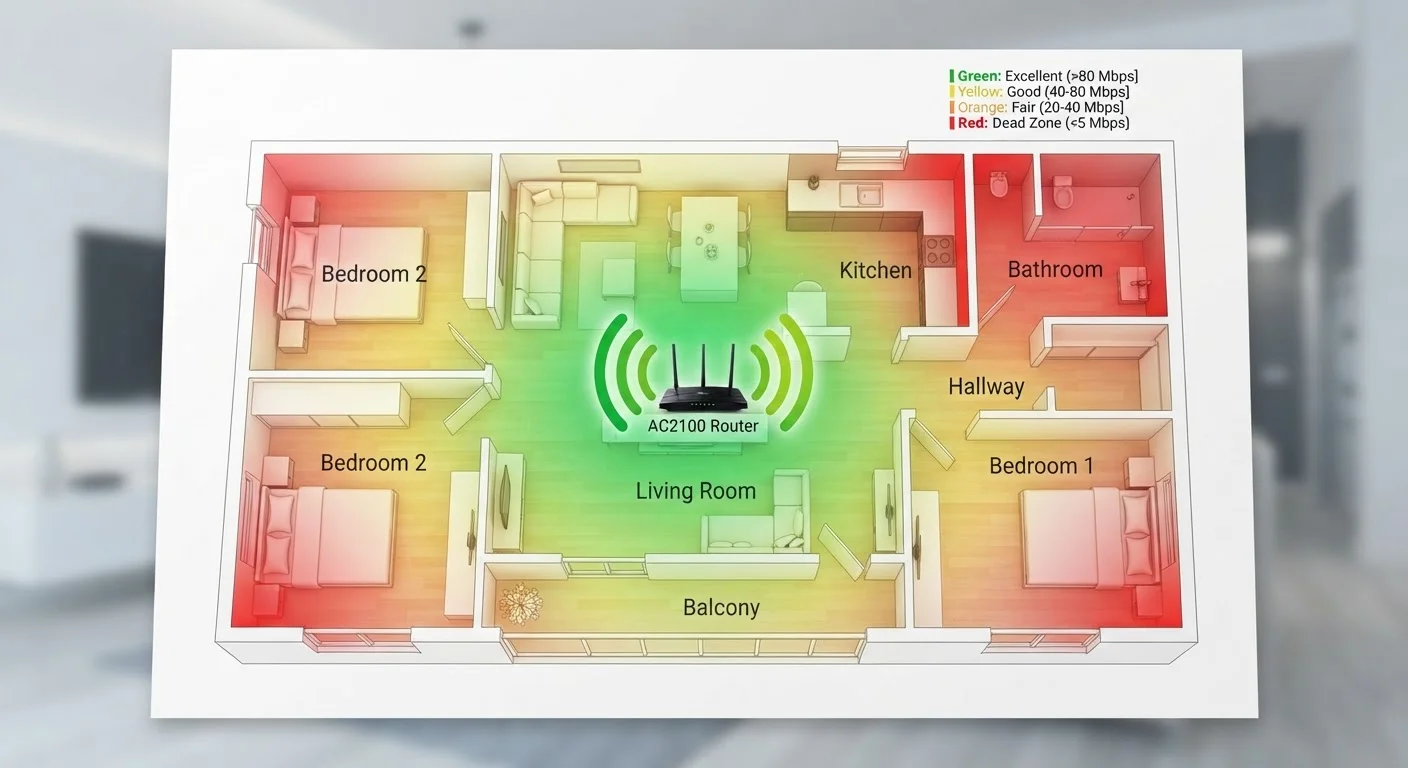
Most smart TVs connect to the internet over Wi-Fi. During initial setup, the TV will ask you to choose your home network and enter the password. After that, the connection is maintained automatically. For households where the TV is far from the router, Wi-Fi signal strength can drop enough to cause buffering; a wired Ethernet connection, if the TV and router are close enough to run a cable between them, is more stable.
The speed your internet plan provides matters. Streaming in standard definition typically needs around 3 to 5 megabits per second. HD streaming generally requires 5 to 25 Mbps depending on the service. 4K streaming can require 25 Mbps or more per stream. If multiple people in your home stream at the same time, those numbers add up. Your internet provider can tell you the plan speed you are currently on.
Place your router closer when possible
If your TV frequently buffers, try moving your Wi-Fi router to a more central location in your home, or ask your internet provider about a mesh network system that extends coverage to more rooms. A weak signal is one of the most common causes of poor streaming performance and is often easy to fix without upgrading your internet plan.
Privacy and data collection on smart TVs
Smart TVs collect data about what you watch. This is done through a technology called ACR, or Automatic Content Recognition, which identifies content on the screen and uses that information to serve targeted ads. ACR is usually turned on by default and disclosed somewhere in the setup process, though that disclosure is often easy to miss.
You can turn ACR off in your TV's settings, usually under a menu labeled "Privacy", "Viewing Data", or something similar. The exact path depends on your operating system. Turning it off does not affect picture quality, app performance, or your ability to use streaming services. It simply stops the TV from logging what you watch for advertising purposes.
Smart TVs may also have built-in microphones for voice commands and, less commonly, cameras. Microphone use is generally tied to the voice assistant; you can disable it in the same privacy settings area. If privacy on connected devices interests you, the same habits that apply to social platforms carry over: the social media privacy settings guide offers a useful framework for thinking through these controls.
Common setup questions answered
When you first set up a smart TV, you will be asked to sign in to or create accounts for the TV's platform and any streaming services you want to use. You do not need to sign up for every service at once; you can add or remove apps and accounts whenever you like.
If the remote feels unfamiliar, most smart TV remotes have a home button that always returns you to the main screen, a back button that takes you one step back in any menu, and a settings or gear icon for options. Voice remotes, which let you speak a search query instead of typing it letter by letter, come with many current models and can save a lot of time.
Software updates for the TV itself are separate from app updates. The TV will typically prompt you when a system update is available, or you can check manually under Settings and then About or System. Keeping the TV's software current closes security vulnerabilities and can improve performance. Smart TVs share some characteristics with other connected devices in your home; if you have thought about a smart speaker for similar reasons, the smart home speaker overview covers the practical trade-offs of that device type.