
What makes an app 'local' or 'web-based'
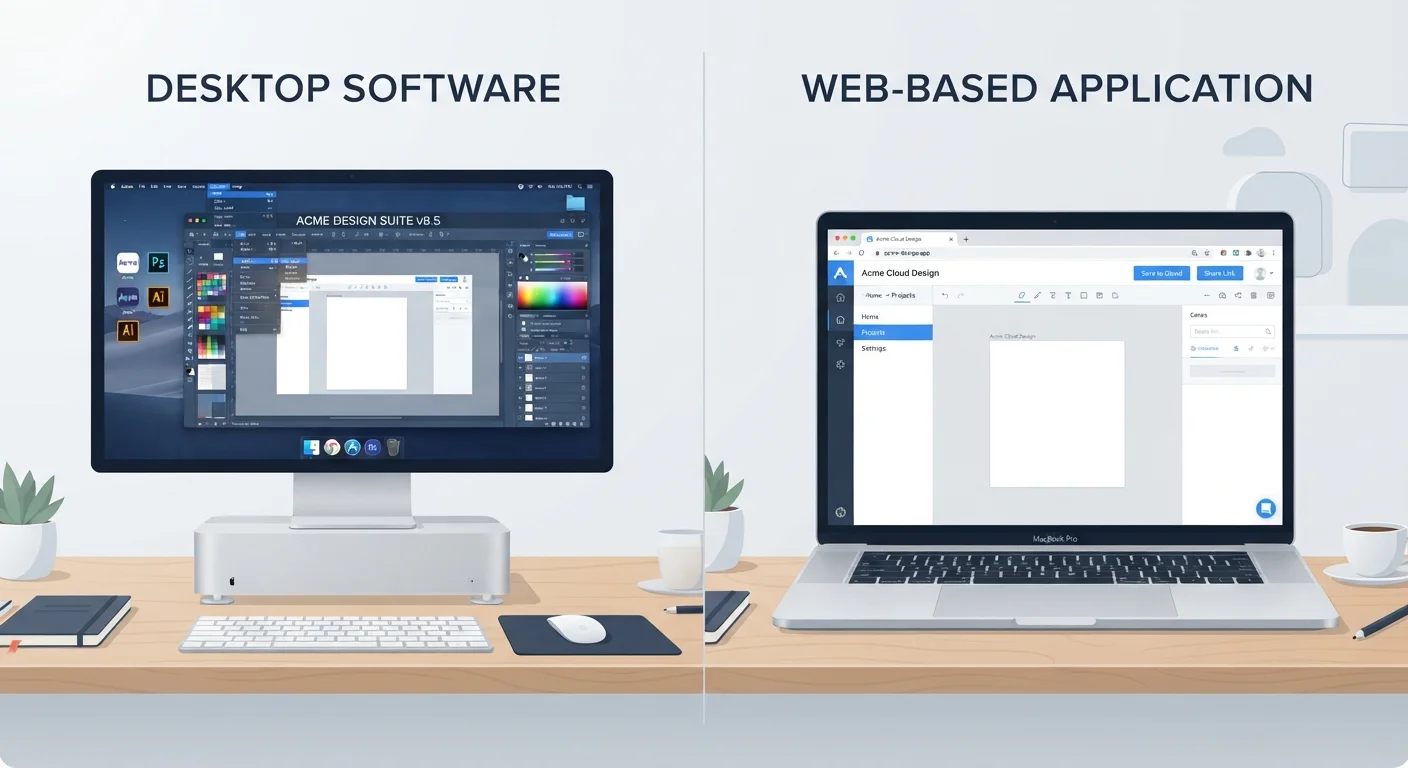
The simplest way to tell them apart is where the software actually lives. A local app (also called a native app or desktop app) is installed directly onto your device. Its files sit on your hard drive, and the app uses your device's processor, memory, and storage to run. Examples include a word processor you installed from a disc or a download, a music player, or a photo editor that opens from your taskbar or dock.
A web app, by contrast, runs inside a browser. When you open Google Docs, your bank's online portal, or a project management tool in Chrome or Safari, you are using a web app. The software lives on the company's servers; your browser just displays it and sends your actions back and forth over the internet.
This structural difference is what drives every other contrast between the two. If you have ever wondered why one tool works fine with the Wi-Fi off while another goes blank, or why your phone app and browser version of the same service behave differently, that is the distinction at work. For a closer look at how sync behavior fits into this picture, see our article on sync errors and disappearing data.
How speed and performance compare
Local apps generally feel more responsive because they run directly on your hardware. The app does not have to wait for a server to process a request and send a result back. A local video editor, for example, uses your graphics chip and RAM directly, which lets it handle large files smoothly.
Web apps have to make round trips over the internet for many actions. That introduces latency, which is the small delay between when you do something and when it happens. On a fast connection, this delay is often unnoticeable. On a slow or inconsistent connection, it compounds quickly and makes the app feel sluggish or unresponsive.
| Criterion | Local app | Web app |
|---|---|---|
| Where it runs | On your device | In a browser, on remote servers |
| Internet required | Usually no | Usually yes |
| Performance ceiling | Higher (uses device hardware) | Limited by connection and browser |
| Where data is stored | Your device (by default) | Company's servers |
| Updates | Manual or prompted download | Automatic, server-side |
| Access across devices | Requires reinstalling | Any browser, any device |
| Installation needed | Yes | No |
Web app performance has improved significantly as browsers have grown more capable, and some modern web apps are nearly as responsive as local ones for simple tasks. However, for anything that processes large files, renders graphics, or runs continuously in the background, local apps still have a practical advantage.
Data, privacy, and where your files actually go
When you create a document in a local app, the default behavior is to save it to your device's storage. You control that file. You can back it up, move it, or delete it without involving a third party.
Web apps store your data on the company's servers (called the cloud). This makes it easy to access your files from any device, but it also means the company's data policies apply to your content. Before relying on a web app for sensitive documents, it is worth reading what the service does with your data. Our overview of the trade-offs of free apps covers this in more detail, since many web apps are free and fund themselves through data practices.
Local apps are not automatically more private. They can still send data back to their developers, and they may request permissions to access your microphone, camera, or contacts. To understand what those permission requests mean, our guide on app permissions breaks down each one. The difference is that with a local app, you have more choices about whether to connect it to the internet at all.
Offline access and updates
Offline access is one of the clearest practical differences. Local apps can typically run their core functions without any internet connection because all the necessary code is already on your device. You can write, edit, calculate, or create even when your Wi-Fi is down.
Web apps depend on internet access for most tasks. Some offer a limited offline mode, but the experience varies a great deal. What gets cached (saved locally) and what gets blocked depends on how the developer built the app. Our article on how offline mode actually works explains that variation in depth.
Updates work in opposite directions. A web app updates on the server, so you always open the current version without doing anything. A local app typically requires you to download and install an update, which can be manual or automatic depending on the app and your settings. If you want to understand how app type intersects with device choice, our comparison of tablets and laptops covers how form factor affects which app type works best for different habits.
Choosing between the two often comes down to a practical question: do you need consistent access without relying on internet quality, or do you need to move between devices without carrying your setup with you? If you find yourself juggling multiple tools trying to answer that question, our guide to avoiding productivity app overload can help you narrow things down.