
What the permissions screen actually does
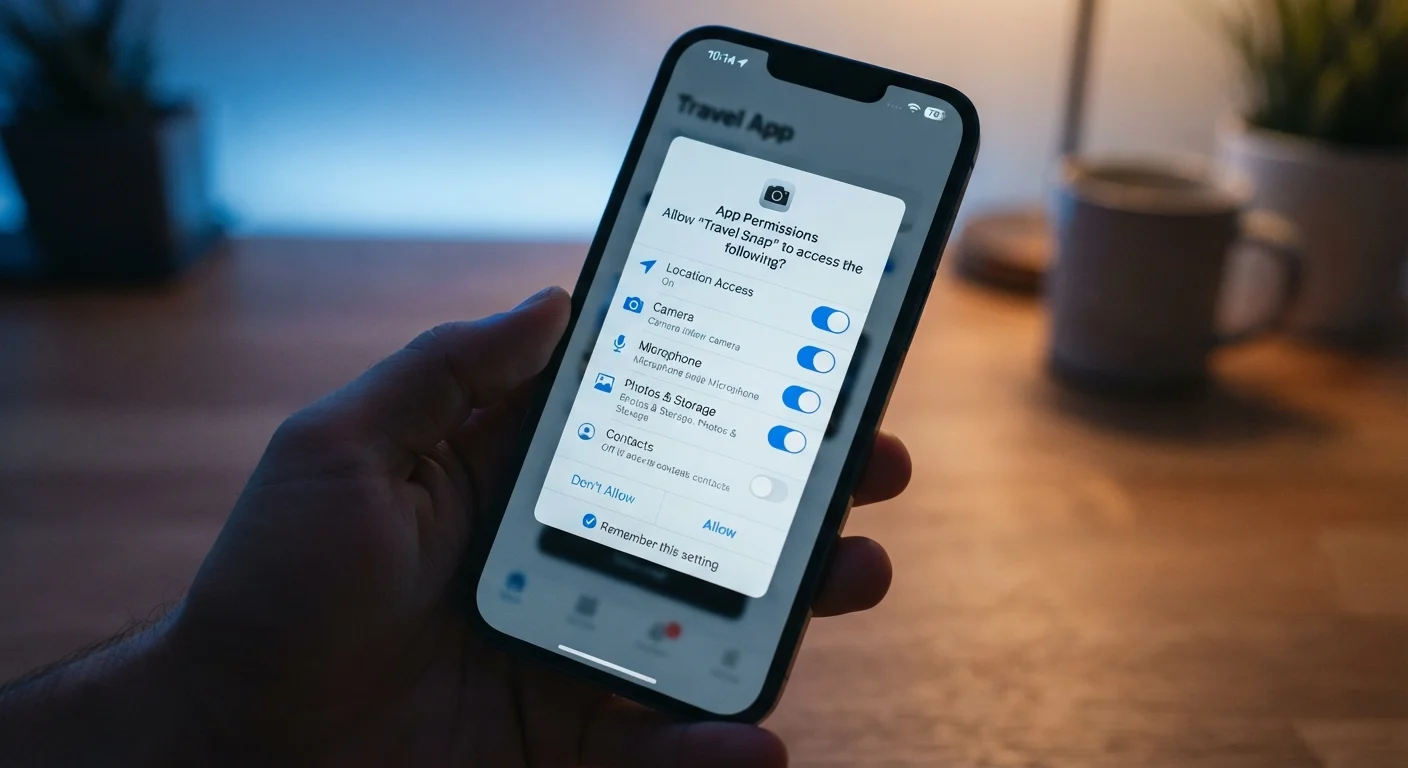
When you install an app and a dialog appears asking for access to your camera, location, or contacts, that prompt is your phone's built-in gatekeeper doing its job. Both Android and iOS require apps to ask before reading sensitive data or hardware. Without your explicit approval, the app cannot reach those resources at all.
The prompt itself is generated by the operating system, not the app. That matters because it means the wording is standardized and the permission either applies or it does not. There is no partial camera access or limited microphone use at the prompt stage. You are granting on or off for each category, and you can revise those choices later in your device settings.
Understanding what each permission category actually touches helps you decide quickly and confidently instead of tapping "Allow" on reflex.
App permission
A user-granted right that allows an app to access a specific hardware feature or data category on your device, such as the camera or your contacts. The operating system enforces these grants and restricts access without them.
Precise location
A GPS-based position that identifies your exact coordinates, typically to within a few meters. This is distinct from approximate location, which places you within a broader area such as a city.
Background access
Permission that lets an app use a resource, such as location, even when you are not actively using it. Many operating systems now offer an option to limit access to only when the app is open.
Permission manager
A built-in section of your device settings where you can view and change which apps have been granted which permissions. Both Android and iOS include this tool.
A plain-English guide to common permission types
Below are the permissions you will encounter most often and what they genuinely let an app do.
Camera
Grants the app the ability to open your phone's camera sensor and capture photos or video. A photo-editing app needs this to take new pictures. A document scanner needs it to photograph pages. A social app that asks for camera access when you never plan to post images or scan QR codes through it warrants a second look.
Microphone
Allows the app to receive audio from your device's microphone. Voice assistants, video-calling apps, and voice-to-text tools have a clear reason for this. A flashlight app asking for microphone access does not.
Location
This category often offers two levels: approximate and precise. Approximate location places you within a city or neighborhood. Precise location uses GPS to pin your exact position. A navigation app needs precise location to work. A recipe app requesting precise location at all times has no evident need for it. Most operating systems now also let you grant location access only while the app is open, which limits background tracking.
Contacts
Opens your address book, including names, phone numbers, email addresses, and any notes you have attached to entries. Messaging apps use this to find which of your contacts also use the service. For other categories of apps, ask why they need a list of everyone you know before agreeing. This data can be shared with third parties in ways the app's privacy policy may not make obvious. See how apps collect data you may not notice for more on that pattern.
Storage or photos
Lets the app read or write files on your device. Newer versions of Android and iOS have split this into narrower buckets: access to photos only, audio only, or all files. Grant only the bucket the app actually needs.
Notifications
Allows the app to send alerts to your lock screen and notification tray. This does not expose personal data by itself, but notification access can train you to open an app repeatedly, which increases exposure to ads and in-app prompts. You can usually grant this selectively.
Bluetooth and nearby devices
Required for apps that connect to wireless accessories. Fitness trackers, speakers, and smart-home controls legitimately need this. Some retail apps have requested it historically to detect in-store beacons, which is a use case worth knowing about.
How to decide whether to grant a permission
One practical approach: ask whether the feature you want from the app actually requires the permission being requested. If you cannot identify a reason, decline and see if the app still does what you need. Most apps continue working without optional permissions, and many will ask again the next time the relevant feature is triggered.
You can also audit permissions you have already granted. On iPhone, go to Settings, then Privacy and Security. On Android, go to Settings, then Privacy, then Permission Manager. Both views let you see which apps hold which permissions and revoke any you no longer want to allow.
Installed apps request permissions differently from browser-based tools. Local apps and web apps handle your data in different ways, and knowing that distinction changes how you assess what a permission prompt means in context.
Free apps sometimes request broader access as part of the model that funds the product. Understanding what free apps exchange for no upfront cost can help you weigh those requests more clearly.
If you travel internationally, review app permissions before you leave. Preparing your device before travel includes steps for tightening access ahead of time.